
Kindle AI Usage Display
Used Codex to jailbreak a 10-year-old Kindle and turn its lock screen into an AI usage dashboard, aggregating usage across all my devices and AI subscriptions.
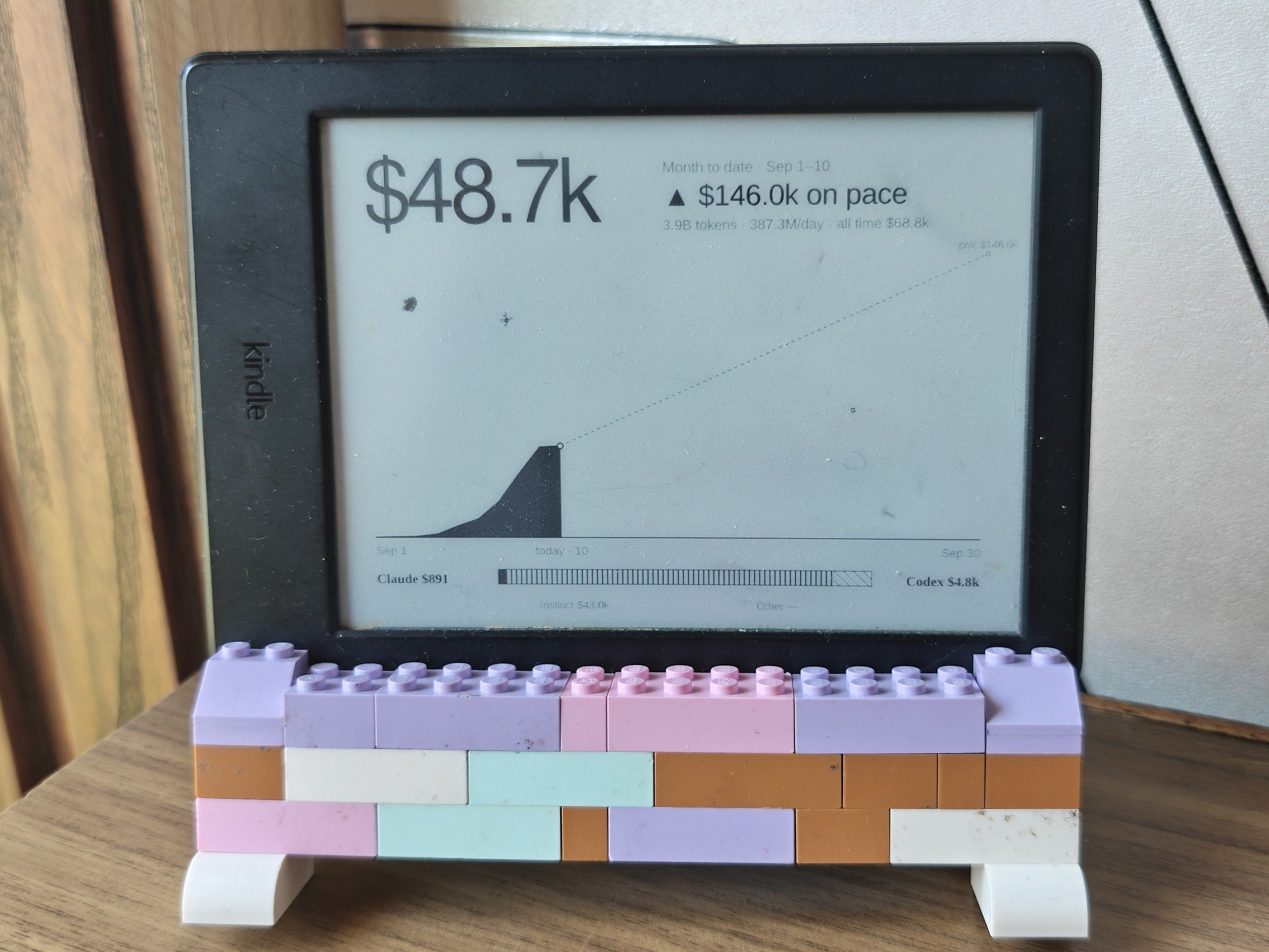
I wanted a physical dashboard to track how much AI I was using across different devices and subscriptions, but didn't want to buy another e-ink display. So I used Codex to jailbreak my 10-year-old Kindle and turn its lock screen into one.
The Kindle now shows a custom unified view of my AI usage across tools like Codex, Claude Code, Cursor, Copilot, and Gemini. It displays month-to-date usage in API-equivalent dollars, a projection for the rest of the month, a cumulative usage chart, and a breakdown by provider. Instead of checking multiple dashboards or switching between accounts, I can just glance at my desk.
The best part is that it barely needs power. Every six hours, the Kindle wakes itself up, connects to Wi-Fi, downloads an updated dashboard, and goes straight back to sleep. The e-ink screen keeps showing the last image without needing continuous power, so it works as an always-visible dashboard without having to stay awake.
How you built it
- Clone the repository and load the Codex skill. Start by cloning kindle-ai-usage. The repo includes a reusable agent skill at
skills/kindle-ai-usage/SKILL.mdthat guides the entire setup. Copy the skill folder into your Codex skills directory and ask Codex to use$kindle-ai-usageto configure your Kindle, hosting, and AI usage accounts. The skill handles the setup process step by step, so you don't need to manually piece everything together. - Check and jailbreak your Kindle. Give Codex your Kindle model and firmware version. The skill checks compatibility against the KindleModding Jailbreaking Wizard and guides you through the appropriate jailbreak method if needed. It also checks whether the device is already jailbroken and verifies that FBInk can render directly to the e-ink display. Different Kindle generations require different methods, so compatibility is checked before making changes.
- Set up the dashboard server. Install Node.js 20+ on a computer that can host the dashboard, clone the repository, run
npm install, and configure the.envfile. The included Node.js server collects usage data and generates the dashboard as a monochrome PNG using SVG and Sharp. You can host it on your laptop or an always-on machine. Codex helps configure the network address, authentication, and framebuffer dimensions for your specific Kindle. - Connect your AI accounts and devices. Tell the skill which AI tools, subscriptions, and computers you use. The repository includes collectors for Codex, Claude Code, OpenCode, Gemini CLI, Cursor, GitHub Copilot, and Anthropic API usage, along with importers for additional sources. Local collectors use tools like
ccusageandcstatsto extract daily token usage and API-equivalent costs. Configure a collector on each computer, connect supported provider accounts, and schedule collection every six hours. The server combines everything into one dataset while avoiding duplicate usage across devices and providers. - Install the dashboard on the Kindle. Once the server is running, connect the jailbroken Kindle over USB and use the included
npm run kindle:installscript with the Kindle's mounted drive and dashboard URL. This installs the display scripts without requiring you to develop custom Kindle firmware. Test a manual refresh to verify the screen orientation, contrast, and layout, then enable the persistent display service. The Kindle uses FBInk to draw the downloaded PNG directly to its framebuffer instead of showing the normal reader interface. - Enable automatic wake and sleep. The included Kindle daemon uses RTC alarms to wake the device every six hours, shortly after the collectors finish updating the server. It turns on Wi-Fi, downloads the latest dashboard, displays it, turns Wi-Fi back off, and suspends to RAM. The e-ink display retains the last image without continuous power, and failed refreshes leave the previous dashboard visible. You can also press the power button to refresh manually.
- Test and customize. Run
npm testandnpm run doctorto verify the server, source normalization, and collector health. Test manual refresh, automatic wake, reboot persistence, and offline behavior on the Kindle. The repository includes diagnostic, stop, and uninstall scripts to recover the normal reading interface if needed. Once everything works, the Kindle operates as a standalone, low-power dashboard without requiring any additional display hardware.